Why Your Mind Goes Blank on Zoom Calls (and the Fix)
Published 2026-11-20 · 6 min read
Your mind most likely goes blank during meetings because the points you planned to make were sitting in working memory, and performance pressure eats working memory first. Structure fixes what confidence can't: decide your three points and your ask before the call, write them somewhere you can glance, and a blank becomes a two-second pause instead of a derailment.
A disclosure before the science: I created GlideRail, a conversation rail for Mac whose windows are invisible to screen capture. It comes up in the section on where to keep your note. The mechanism, and most of the fix, needs no app at all.
Blanking is a storage problem
Your mind goes blank in meetings because your talking points were never stored anywhere solid. They float in working memory, the small mental scratchpad you use to hold a few things "in mind" at once. That scratchpad is tiny. According to Nelson Cowan's landmark review in Behavioral and Brain Sciences, its central capacity limit averages about four chunks, and it isn't reserved for your points. Everything competes for it.
Then the meeting starts. Someone senior joins. You get asked a question a beat earlier than expected. Pressure floods the scratchpad with monitoring (how am I coming across, was that answer okay, they look bored) and your three points get shoved off the edge. That's the blank. The points most likely weren't forgotten so much as displaced.
Pressure crowding out working memory has been studied in lab tasks. In Beilock and Carr's experiments, performance pressure dragged down scores on the math problems that leaned hardest on working memory, and only the people with high working memory capacity were harmed. The authors' explanation: pressure used up the very resource those people relied on. So a blank says nothing about how smart you are.
Why do you blank out more on Zoom calls?
You likely blank out more on Zoom calls because the same meeting on video adds load a conference room doesn't. Stanford's Jeremy Bailenson lays out four causes of Zoom fatigue: close-up eye contact with a grid of faces, seeing yourself on screen all call long, sitting still to stay in frame, and the higher cognitive load of sending and reading cues through a screen. Load like that draws on the same scratchpad your points live on.
So the on-camera version of you likely has less working memory to spare than the shower version of you who rehearsed this morning. Same brain, different load. Fixing the environment helps (Stanford's own suggestions include turning off self-view), but environment fixes only lower the tax. They don't protect the points.
The fix is structural, not mental
The fix for blanking is structural: stop using working memory as storage and move your talking points onto something you can see. You can't will your mental scratchpad bigger at minute twelve of a tense call. But you can stop asking it to hold the meeting.
Cognitive scientists call this cognitive offloading: using the physical world to carry load your head would otherwise carry, the way a shopping list does. Applied to meetings it means one thing: decide before the call, externalize, then glance.
- Decide before. The three points that must land, and the ask. Deciding is the expensive cognitive step. Do it when you're calm, not live.
- Externalize. Write them down where you can see them during the call. On paper, on a second screen, in a floating note; the medium matters less than the existence.
- Glance, don't read. The note is a map, not a transcript. One line per point, so a two-second glance reloads the whole thing. If you find yourself reading full sentences aloud, the note is overwritten (see how to not sound like you're reading).
The one-pager
The one-pager is the entire anti-blanking artifact: a verbatim opener, three one-line points, the numbers you might be asked, your ask as an exact sentence, and an empty parking lot. Five minutes to fill in, one glance to use:
CALL: [who], [date]

OPENER (verbatim, it's the only scripted line):
"Thanks for the time. I want to cover three things
and leave ten minutes for questions."

THREE POINTS (one line each, lead with the noun or number):
1.
2.
3.

NUMBERS THEY MIGHT ASK:
- [metric]: [value, as of when]
- [price / date / headcount]:

THE ASK (exact sentence):
"Can we [specific next step] by [date]?"

PARKING LOT (starts empty, fills during the call):
-
Three points, not seven. The list has to be reloadable in one glance, and the discipline of cutting to three is most of the prep's value. The numbers section exists because "they ask the number you knew this morning" is a common blank, and the cheapest to prevent. The parking lot is where mid-call tangents go to die politely, so they stop occupying your scratchpad too.
I go deeper on the framework (and the five-minute ritual for filling it) in how to remember what to say in meetings.
Where should the note live during the call?
A meeting note can live on paper next to the keyboard, on a second screen, or in a floating window near the camera. Paper is fine for most calls: nobody sees your desk, and it can't crash. The costs: your eyes visibly drop off camera when you use it, and it's useless the moment you're screen-sharing with both hands on a demo.
A note on the screen fixes the eye-drop: it can sit right under your camera. The catch is that anything on your screen appears in a screen share, including your safety net. Presenter notes for slide decks solve this for presentations. Sharing one window instead of the whole screen keeps a note out too, until the demo needs a second app.
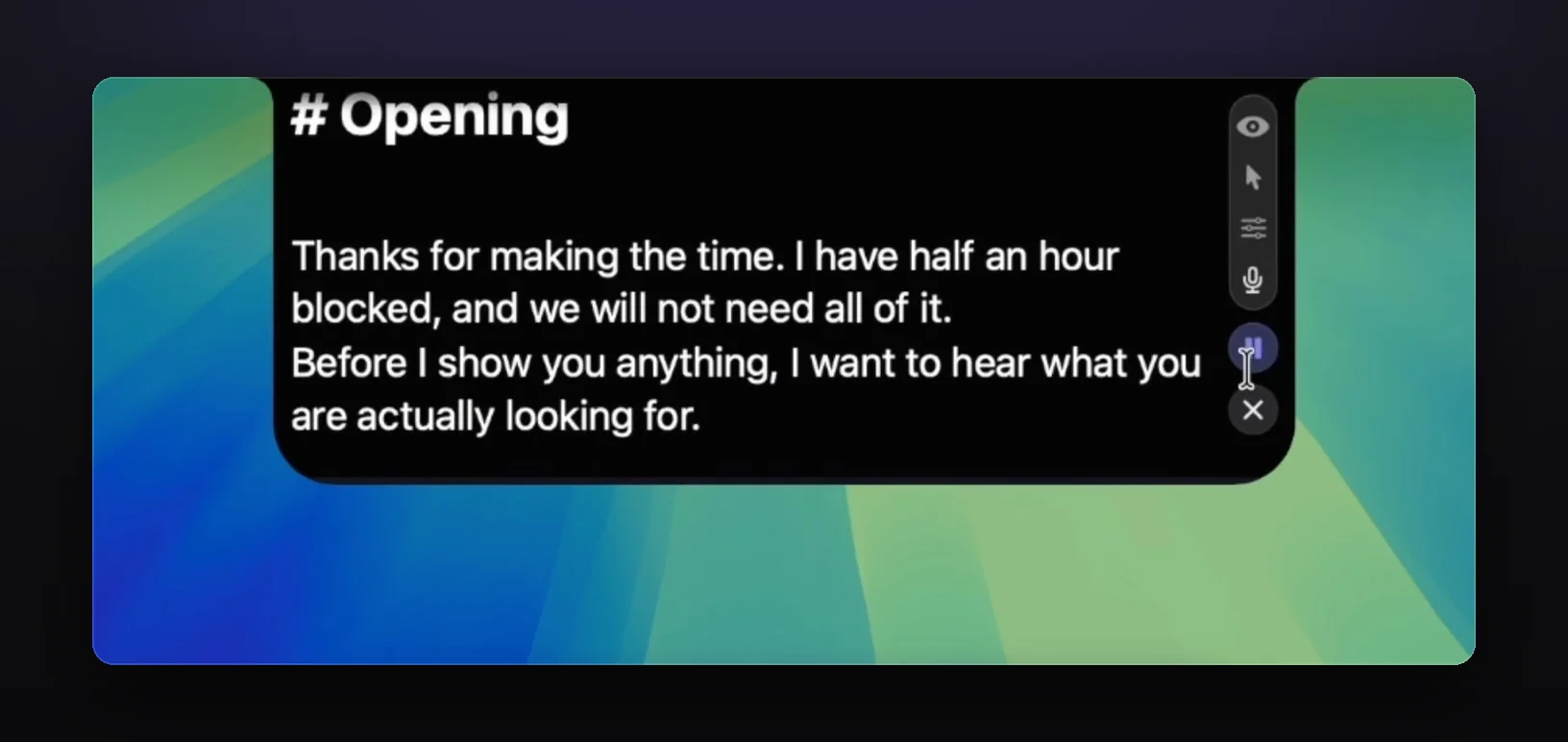
That gap is why I built GlideRail. Its windows float above the call and, on Pro, are invisible to screen capture: Zoom, Meet, Teams, Loom, OBS, and QuickTime record everything except your notes. In Zoom, set Settings, Share Screen, Advanced to "Advanced capture with window filtering" so the notes stay out of the share. On Pro, Cue Mode can show the one-pager one point per card, so a glance lands on one line. The free version is the whole editor and library, free forever; it just shows up in shares like any window. And a camera pointed at your physical screen still sees everything, GlideRail included. If you never share your screen, paper honestly covers you. The setup details are in Zoom presentation notes on a Mac.
When you still blank anyway
Even with the one-pager in view, you'll sometimes blank. Rehearse this once so it isn't improvised live:
- Stop talking. Mid-sentence trail-offs read worse than silence. A two-second pause reads as thinking, because it is.
- Say the bridge line. "Give me a second. I want to get this right." It buys the seconds the glance needs.
- Glance at the page. The ask is at the bottom. Worst case, skip to it: a meeting that lands the ask was a good meeting, even if point two died en route.
FAQ
Why does my mind go blank when I'm put on the spot?
Your talking points sit in working memory, which is small. Sudden pressure fills it with self-monitoring (how you're coming across, what they're thinking) and displaces the points. That fits lab research on choking under pressure, where the drop was biggest on tasks that depend most on working memory.
Is blanking out in meetings a sign of something serious?
Blanking under pressure is a common, well-documented response to load, and structure can help a lot. But if intense anxiety around meetings is persistent and interfering with your work or life, that's worth raising with a professional rather than an app or a blog post, including this one.
How do I recover in the middle of a sentence?
Use the three steps above: stop, bridge, glance. If the point is truly gone, move to your ask and circle back in the follow-up email.
Does memorizing my points prevent blanking?
Probably not on its own. A memorized run of points is sequential, so losing the thread can take everything after it with it. A written one-glance map has no sequence to lose. Memorize only your opening line; externalize the rest and glance as needed.
What should be on my meeting note?
The five parts of the one-pager above: opener, three points, numbers, the ask, a parking lot. One page at most.
If you want the one-pager floating under your camera on the next call, GlideRail is a free Mac download: the free version is free forever, and there's a 7-day free Pro trial for the invisible-during-screen-share part. Written by Takumi, maker of GlideRail. Last updated November 20, 2026.