Participants See a White Screen in Presenter View on a Mac?
Published 2026-11-18 · 6 min read · Competitor facts last checked 2026-11-18
If participants see a white or black screen while you see Presenter View on a Mac, stop sharing the slide show window behind it. In Teams, use PowerPoint Live instead. In Zoom, play the show in a window and share that, or share a portion of your screen around the slide. On a live call, leave Presenter View first.
One disclosure: I created GlideRail, a conversation rail for Mac whose windows stay out of screen shares with Invisible on (Pro). It's the last option here, for calls that leave the deck. The free fixes come first, and for a deck on its own they're enough.
- The fixes at a glance
- What do you do in the middle of a call?
- Why do participants see a white screen?
- How do you fix it in Teams on a Mac?
- How do you fix it in Zoom on a Mac?
- When none of these fit
- Which fix should you pick?
The fixes at a glance
| Fix | Works in | Your notes? | Next slide? | Good for |
|---|---|---|---|---|
| Leave Presenter View | Any app | No | No | Rescuing a live call |
| PowerPoint Live | Teams | Yes, beside the slide | Yes | Any deck in Teams |
| Windowed slide show, share that window | Zoom, Meet, Teams | In the editing window | No | One Mac screen |
| Portion of screen around the slide | Zoom | Yes | Yes | Presenter View on one screen |
| Second display, share that display | Any app | Yes | Yes | You have a second screen |
| GlideRail (Pro), full-screen share | Zoom, Meet, Teams | On your side of the screen | No, your cards aren't slides | Calls that leave the deck |
What do you do in the middle of a call?
- Press Esc to end the show.
- On the Slide Show tab, click Play from Start, not Presenter View.
- Ask once: "Can you see my slides now?"
- If not, stop the share and start a new one on your whole screen.
One poster in the Microsoft thread below reports that everyone could see the slides once they left Presenter View. That's one report, not a tested fix, but it costs you nothing to try. You lose your notes on screen for now. They're still in PowerPoint's editing window, as long as you aren't sharing that window.
If the share shows black before you even start the show, check the Mac permission: System Settings, then Privacy & Security, then Screen & System Audio Recording, and turn on your call app. This post on Mac screen sharing has the full fix.
Why do participants see a white screen?
The reports describe one setup: sharing your desktop or PowerPoint's slide show window while Presenter View sits on top. It's a known one-screen method. In this Microsoft Q&A thread, the first poster, on PowerPoint 16.35 for Mac in 2020, says the other participants got a white screen, and a reply in January 2021 reports a black one.
The method has a good source. Microsoft MVP Dave Paradi explains sharing the hidden Slide Show window and says it works in Zoom, Teams and Google Meet, so it may work on your setup. The thread has no accepted fix and nobody there confirmed a cause. PowerPoint has changed since, and I can't tell you it happens on your version.
So don't debug it during a call. Move to a method that doesn't share a window Presenter View is covering.
How do you fix it in Teams on a Mac?
In Teams, use PowerPoint Live instead of sharing a window. Open the deck in PowerPoint for Mac and select Present in Teams, or in the meeting select Share content and pick the file under PowerPoint Live. Microsoft's PowerPoint Live page says your slides appear in the meeting with your notes next to them, on your side.
It supports .pptx and .ppsx files, so save an old .ppt in the new format first. Attendees can move through the deck on their own unless you turn that off before you share, which matters if a later slide holds your price.
On a small screen the presenter view can be hidden. If you don't see your notes, choose Change view, then Show presenter view.
How do you fix it in Zoom on a Mac?
In Zoom, two free fixes work with one screen. The first plays the slide show in a window. In PowerPoint, choose Slide Show, then Set Up Slide Show, then "Browsed by an individual (window)", as Microsoft's page describes. Start the show, click Share Screen in Zoom, and pick that window. Your notes stay in the editing window, outside the share.
The second keeps Presenter View. Open it, then in Zoom click Share Screen, go to Advanced, pick Portion of Screen, and fit the green border around the current slide (Zoom's share options). The call sees only what's inside the border, so it's a smaller picture than a full slide. Zoom's page doesn't cover Presenter View, so set the border before the call and test it.
The PowerPoint on Zoom guide has every step for both.
If you own a second display, the setup is simpler in any app: show the slides there, keep Presenter View on your laptop, and share only the second display.
Whichever you pick, run one test share and click through a few slides before the call.
When none of these fit
These fixes all assume you stay in the deck. On a sales call or a demo you often don't. The buyer asks to see the product, you open a browser, and a one-window share shows nothing new until you start again. A full-screen share solves that, and it also sends Presenter View to everyone.
GlideRail takes your notes out of PowerPoint altogether. Its windows stay out of a full-screen share and out of recordings with Invisible on (Pro), so you can share your screen, play the deck in a window, and keep your prep on your side. On Zoom, set Screen capture mode to "Advanced capture with window filtering" first, as this Zoom guide shows. Meet and Teams need no setting.
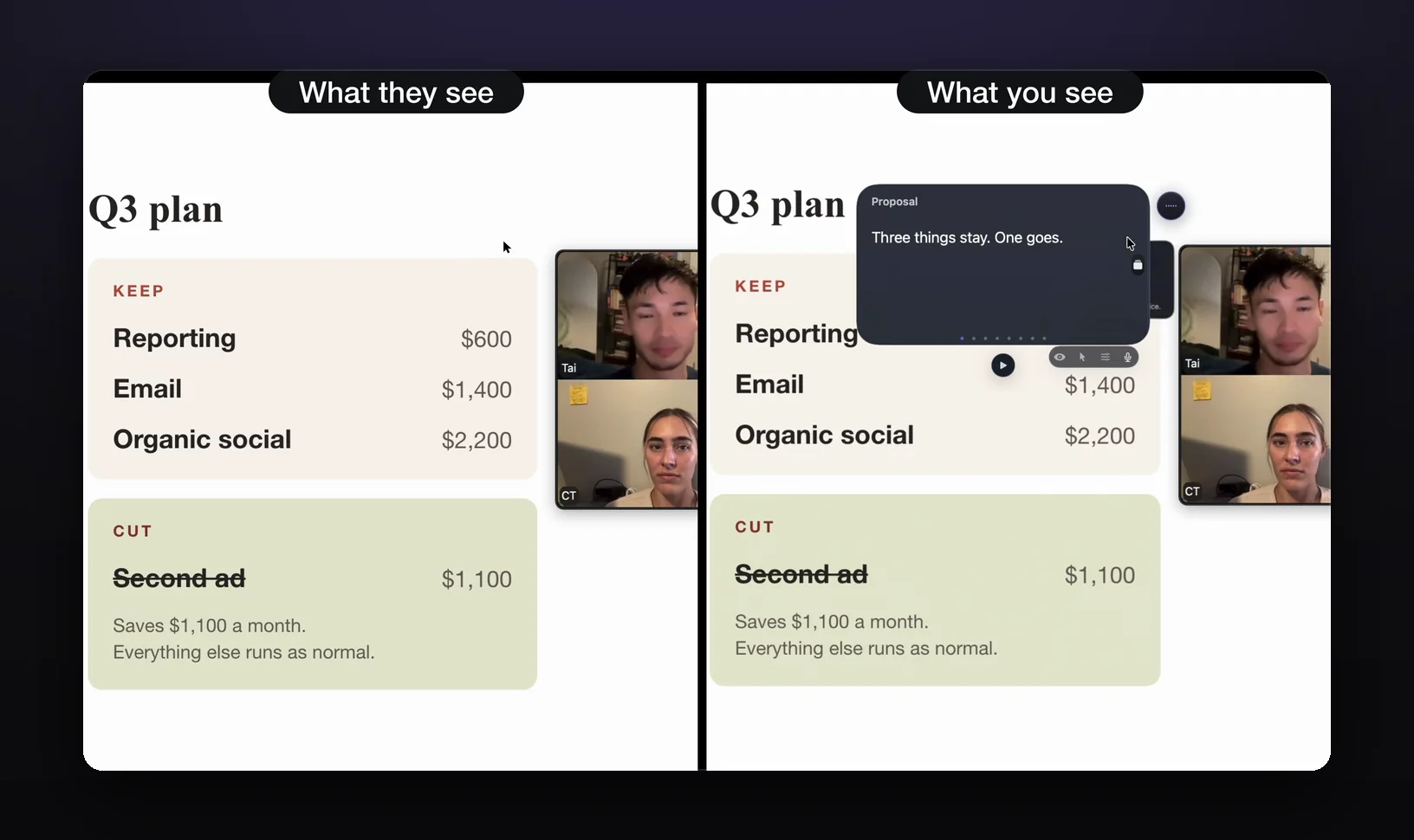
GlideRail's cards aren't tied to your slides, so they won't advance with the deck; you keep them by topic instead. ⌘[ and ⌘] change cards from any app while Cue Mode (Pro) is open. It costs money for what's free above, so buy it for the calls that leave the deck, not for a deck on its own. On the free version your windows show in shares, and a phone pointed at your screen sees everything.
Which fix should you pick?
- You're on a call right now: Esc out of Presenter View and carry on.
- You're on Teams: PowerPoint Live.
- You're on Zoom with one screen, and you just need your notes: a windowed slide show.
- You want the next slide and timer too: Presenter View with a portion share, tested first.
- You have a second display: use it.
- Your calls move between slides, a browser and your product: GlideRail, with a 7-day free Pro trial and a 30-day money-back guarantee if you buy.
FAQ
Why is my PowerPoint black on Zoom when I use Presenter View?
Nobody has confirmed one cause. Check the Screen & System Audio Recording permission first, since a missing one gives a black share in any app. Then share a windowed slide show or a portion of the screen instead of the window behind Presenter View.
How do I turn off Presenter View in PowerPoint on a Mac?
Press Esc to end the show, then use Play from Start on the Slide Show tab. If a second display is connected, check which screen the show lands on before you share.
Can I use Presenter View on one screen on a Mac?
Yes, PowerPoint for Mac opens it on one screen. The hard part is the share: a portion share around the slide in Zoom, or PowerPoint Live in Teams, keeps your notes off the call.
Will participants see my notes if I share Presenter View?
Yes, if you share your whole screen or the Presenter View window: everything on it goes out, including the notes, the next slide and the timer. Share the slides only, with one of the fixes above.
Does the white screen show up in the recording?
Expect it to. Zoom records what's shared, so if your audience saw white, the recording likely did too. For a recording that matters, run a short test and play it back first.
Written by Takumi, maker of GlideRail. Last updated November 18, 2026.