How to Run a Live Demo Without Alt-Tabbing to Your Notes
Published 2026-11-24 · 7 min read
You can run a demo without switching windows by keeping your notes where the share doesn't reach: on paper, on a second display, beside a single shared window, or in a notch prompter. All four are free. Or you can float your notes over the demo itself. GlideRail, a conversation rail for Mac, does that: its windows float on top of the app you're showing, and with Pro they stay out of the screen share and let your clicks pass through to the product underneath.
I created GlideRail, so weigh that last option knowing it. The free ones come first.
Why alt-tabbing shows
Share your entire screen and every switch is on their screen too: press Command-Tab and the doc called "DEMO NOTES - ACME" is what they're now looking at. Share a single window and the notes stay private, but the room still gets the pause while you find your place and come back.
The fixes that cost nothing
Share one window, not your whole screen. Zoom lets you share your entire screen or specific application windows, and Meet and Teams both let you present a single window. Your notes sit off-share, next to the demo. Two limits: on a 14-inch laptop, notes and product fight for the same pixels, and a demo that spans a browser, a terminal and a dashboard pushes you into a full-screen share, which is where this trick stops working.
Use a second display. Demo on the monitor, share only that display, keep notes on the laptop. It works. It also needs hardware and a desk, and your eyes leave the camera on every glance.
Print the run sheet. A page next to the keyboard never shows up in any screen share. You can't update it mid-call, and a long demo turns into page shuffling on an open mic.
Use a free notch prompter. A strip of steps tucked under the notch. For a short, linear walkthrough it's fine, and better than winging it. The limit for most of them is the shape: one strip, scrolling in order. Live demos often aren't linear. One pricing question drags you eight steps ahead, so check whether yours can jump before you rely on it.
Two hygiene moves whatever you pick: turn on a Focus to silence notifications before you share, and in Zoom, hide your self view so your eyes stay on the room instead of your own face.
Choreograph the demo: one note per beat
Whatever holds your notes, the demo itself needs a shape. It works on paper too.
Cut the demo into beats. Three to six. The opening, the moment the product earns its price, the pricing turn, next steps. A rule of thumb: if a beat needs a long string of clicks, split it in two.
Write one card per beat. The click path. The one line that lands the value. The number they'll ask about when this screen is up. Nothing else, so it reads at a glance.
Build a setup checklist. The exact test account. The seeded data. The tabs already open. The state you reset to afterward. Run it before the call connects, not during.
Write a recovery card. The sentence you'll say while something hangs ("while that loads, one thing worth knowing"), the fallback (a recorded clip, screenshots), and the reset steps. Write it while you're calm, not live.
Then rehearse from the cards. As one member put it in a RevGenius community thread on handling sales call objections: "I've not found a substitute for putting in the time to practice!" Our sales demo notes page goes deeper on what belongs on each card.
The GlideRail version: notes over the demo, clicks pass through
GlideRail puts the same beat cards on top of the demo itself. Floating windows are free. Invisibility to the screen share, click-through and Cue Mode are Pro.
First, the bill: this is a Pro workflow ($99/yr, $19.99/mo, or $249 once). Free GlideRail gives you unlimited notes, the full editor and as many floating windows as you like, but free windows show up in a share.
The notes go where the demo is: any screen, external monitors included, any size, as many windows as you need. Zoom, Meet, Teams, Loom, OBS and QuickTime capture everything except GlideRail, live share or recording. Zoom is the one with a setup step: on some Macs its default Auto mode includes GlideRail's windows, so set its screen capture mode to Advanced capture with window filtering (Settings, Share Screen, Advanced) before the call. Then you share your entire screen: the room sees the product, you see the product plus your notes. The full setup is in how to share your screen without showing your notes.
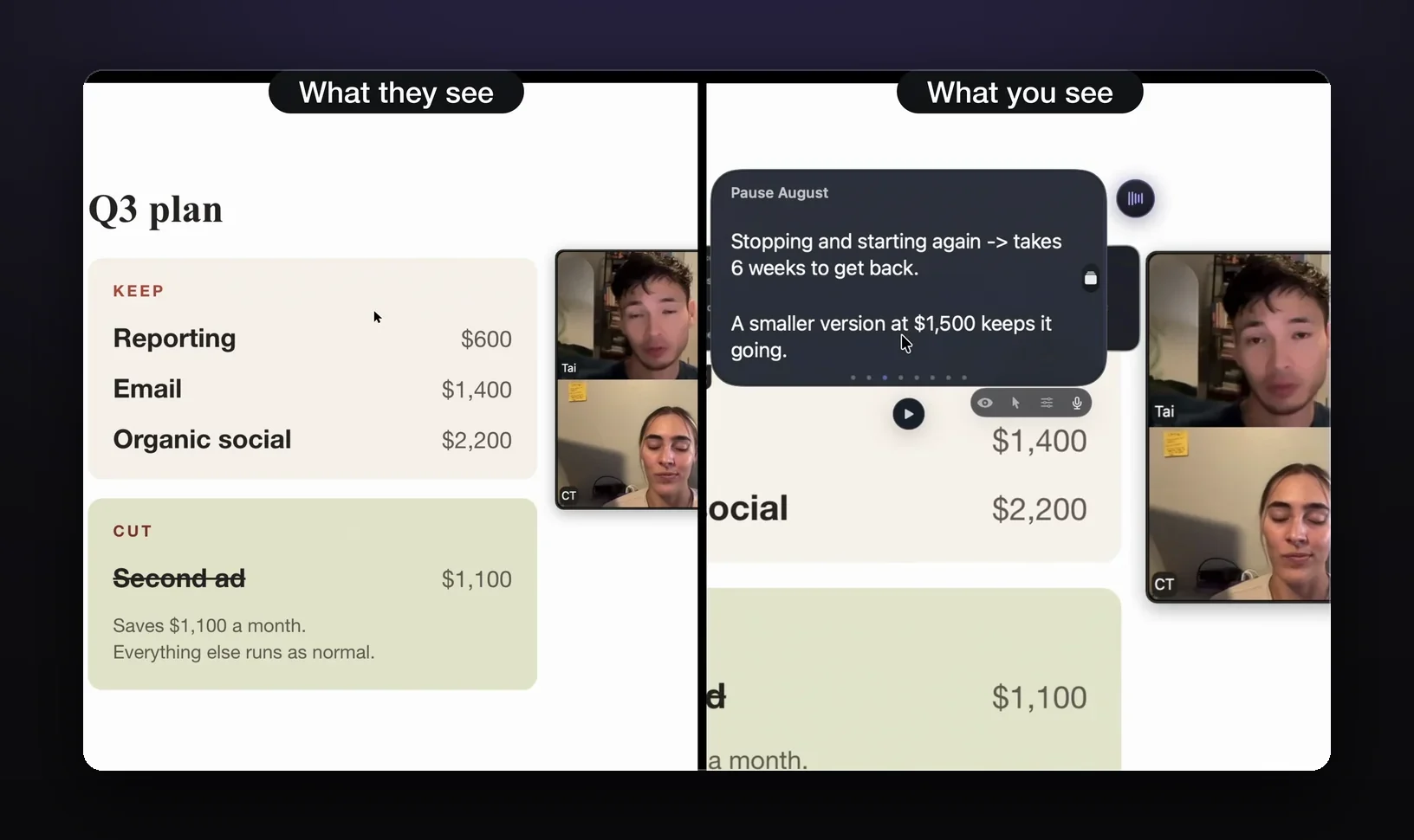
Click-through lets you click the product through a floating note. Press ⇧⌘E while GlideRail is focused and the window stops catching clicks; they land in the app underneath, so a beat card can sit right on top of the button you're about to press. Press ⇧⌘E again with GlideRail focused to turn it off. When you need to touch the note itself, the View Lens (a peephole that opens where you hover) stays interactive.
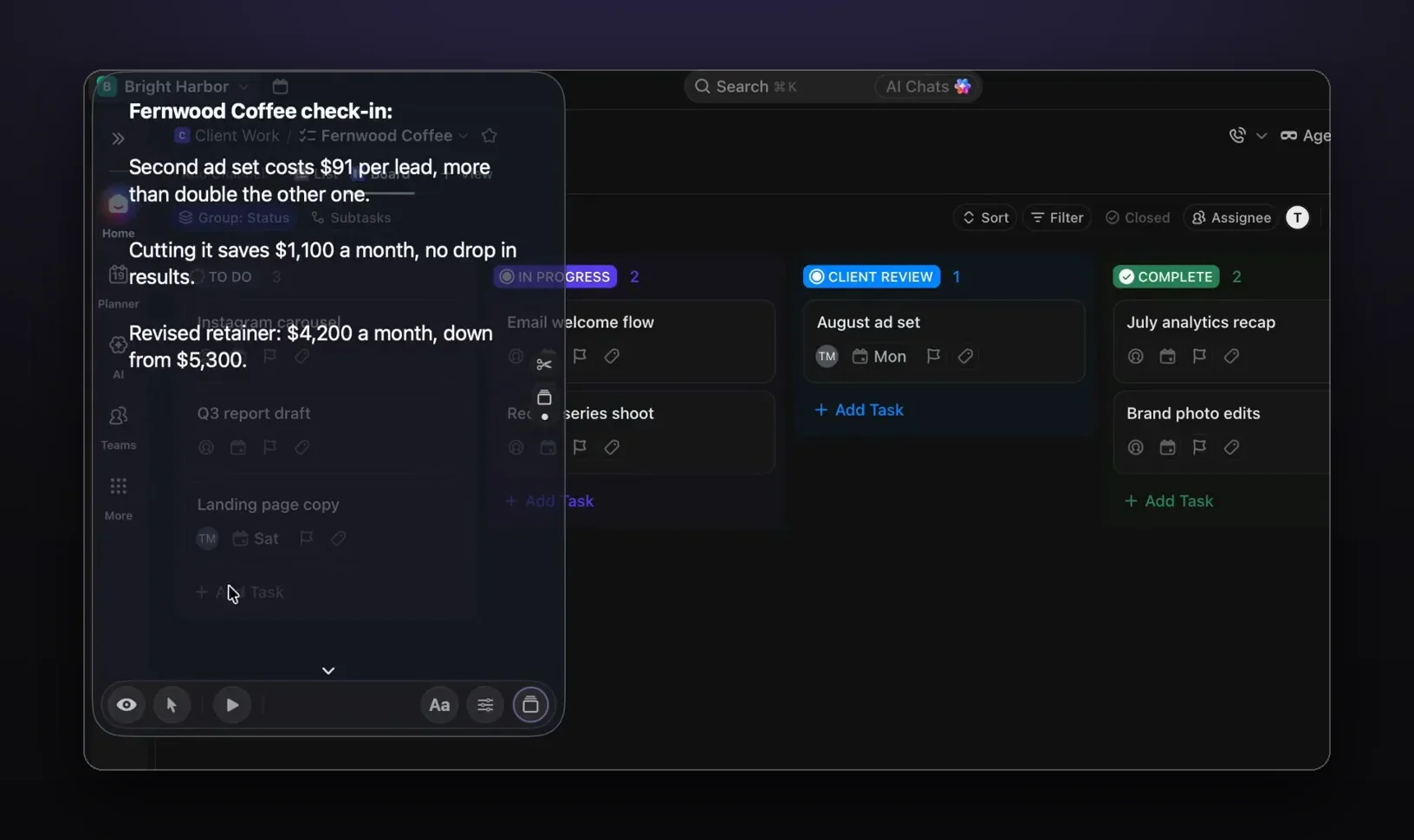
Cue Mode turns each beat into a card. Type # plus a heading and press Return: that's a section, and each section is a card. With Cue Mode open, ⌘[ and ⌘] step through the cards even while the product has focus, so you never leave the demo to turn the page. To jump further, click the GlideRail window and press ⌘1–⌘9. Pricing question in beat two? Click GlideRail, ⌘5, answer it, ⌘2, back.
The recovery card becomes a sticky note: borderless, parked in a corner for the whole call, and with Pro, out of the share like everything else. The setup checklist works on the free version (clickable checkboxes in the editor); tick it off before the call connects.
And when you hand over control, or want nothing on screen for a minute: ⌘' hides every GlideRail window at once, from any app. Press it again and they're back.
This is for your own demo material, the same as a run sheet. If a host's or an exam's rules forbid notes, hidden or not, don't use them.
Which method fits your demo
For a one-screen laptop demo that needs jumps out of order and a full-screen share, GlideRail Pro covers all three. When the demo lives in one app or you have a second screen, a free option is enough.
| Method | One-screen laptop | Notes hidden in a full-screen share | Jump out of order | Cost |
|---|---|---|---|---|
| Printed run sheet | Yes | Yes, off the screen entirely | Page shuffling | Paper |
| Share one window, notes beside it | Cramped | No, it needs a single-window share | Yes | Free |
| Second display | Needs a monitor | Only if you share just the demo display | Yes | Hardware |
| Free notch prompter | Yes | Varies by app | Most scroll in order | Free |
| GlideRail Pro | Yes | Yes, invisible to capture | Yes: Cue Mode cards | $99/yr or $249 once |
FAQ
Can people see me switching to my notes when I share my screen?
If you share your entire screen, yes: whatever window you switch to is on their screen too. If you share a single window, your notes stay private, but the room still catches the pause. The details are in can Zoom see your other windows.
Does sharing a single window really hide my notes?
Yes. Viewers see only the window you picked, not your notes beside it. It's free and built into Zoom, Meet and Teams. It falls apart when the demo spans several apps (forcing a full-screen share) or when one small screen can't hold notes and product at once.
Do free notch prompters work for live demos?
For a short, linear segment (a scripted intro, a five-step walkthrough), yes, and you should try one before paying for anything. Most are one strip, pinned in one place, scrolling in order. When a prospect's question pulls you out of sequence, check that yours can follow.
Does GlideRail's click-through work while I'm screen sharing?
Yes. Click-through is how the window behaves, not a sharing feature: clicks pass through the note into the app underneath whether or not a share is running. It's a Pro feature, as is invisibility. Free windows catch clicks normally and show up in shares.
What can still expose my notes?
A camera. Invisibility applies to screen capture and recording, so a phone pointed at your monitor sees everything, and a colleague's machine doesn't have your notes on it. GlideRail stays out of Zoom (with Advanced capture with window filtering), Meet, Teams, Loom, OBS and QuickTime, not out of a lens aimed at your screen.
Set up your beat cards before the next demo
Download GlideRail free and build the beat cards tonight; the free version costs nothing, forever. Then use the 7-day free Pro trial for a real demo: turn on invisibility a few minutes before the call. If demos are a big part of your calls, keeping your talk track in view on sales calls covers discovery questions and objection answers too.
Written by Takumi, maker of GlideRail. Last updated November 24, 2026.